Smartphone Security Settings Worth Turning On Today
Phones come with strong security features, but several of the most useful ones are off by default or buried in menus. Spend twenty minutes with this list and your phone will be much harder to break into, much easier to recover if lost, and less likely to leak information to people nearby.
Menu names vary by phone model and software version. When a path below does not match your phone exactly, use the search bar at the top of the Settings app.
1. A strong passcode and a short auto-lock #
Your screen lock protects everything else. Use at least a six-digit passcode, or an alphanumeric one for more strength, plus fingerprint or face unlock for convenience. Set the screen to lock automatically after a short period, such as one minute.
Avoid patterns and codes that others could guess, like birthdays or repeated digits, and be mindful of people watching when you type your code in public.
2. Automatic updates #
Updates fix security problems. Turn on automatic updates for both the operating system and your apps. On iPhone, look under General and Software Update. On Android, look under System or Software update, and also keep Google Play system updates current. Our guide to a software update routine explains why prompt updates matter.
3. Find My or Find My Device #
These let you locate, lock or erase a missing phone from another device. On iPhone, open Settings, tap your name and turn on Find My. On Android, look for Find My Device in your security or Google settings. Our guide to what to do before and after a phone is lost or stolen builds on this.
4. Theft protection features #
Recent versions of iPhone and Android include protections designed for phone theft, such as requiring your face or fingerprint for sensitive changes when you are away from familiar places, or locking the screen if the phone appears to be snatched. Search your settings for "stolen device" or "theft" and turn on what your phone offers.
5. Lock screen privacy #
Notification previews on the lock screen can reveal messages, and sometimes sign-in codes, to anyone holding your phone. Set previews to show only when the phone is unlocked. On iPhone, this is under Notifications and Show Previews. On Android, look under Notifications or Lock screen for an option to hide sensitive content.
6. Apps only from official stores #
Install apps from the App Store or Google Play rather than from links or websites. On Android, keep the permission to install apps from unknown sources turned off for browsers and messaging apps, and leave Google Play Protect on. Apps sent through text messages or by a caller "helping" you are a common way scams begin, as described in our guide to text message scams.
7. Strong security on your phone's main account #
Your Apple Account or Google Account controls backups, purchases, Find My and often your passwords. Give it a unique password and turn on two-factor authentication. Check that its recovery email and phone number are current.
8. A carrier account PIN and SIM protection #
Ask your mobile carrier to add a PIN or account lock so nobody can transfer your number without it. Some phones also let you set a SIM PIN, which stops your SIM card from working in another device without the code. If you turn this on, write the code down somewhere safe, since too many wrong attempts can lock the SIM.
9. Sharing and wireless settings #
Wireless sharing features are convenient but can expose you to unwanted files or requests in crowded places.
- On iPhone, set AirDrop to Contacts Only and use Everyone only briefly when you need it.
- On Android, set Quick Share to receive only from your contacts or only when you choose.
- Turn off Bluetooth when you are not using it if you prefer, though leaving it on for accessories is reasonable for most people.
10. App permissions #
Review which apps can use your location, camera, microphone, photos and contacts, and remove access that is not needed. Our guide to app permissions walks through each one.
11. Emergency features #
While you are in Settings, set up your emergency contacts and medical information so first responders can see them from the lock screen, and learn how your phone's emergency SOS feature works. These are safety settings rather than security settings, but they belong on everyone's checklist.
12. Your own charger when you can #
Using your own charger and cable, or a portable battery, is a simple habit when you are away from home. It avoids plugging into unknown public USB ports, which security agencies have cautioned about.
Frequently asked questions #
Is a six-digit passcode really better than four digits? #
Yes. A six-digit code has far more possible combinations than a four-digit one, which makes guessing much harder. An alphanumeric passcode is stronger still.
Do I need antivirus software on my phone? #
For most people, keeping the phone updated, installing apps only from official stores and leaving built-in protections on matters more than extra security apps. Be wary of apps that claim to "clean" or "speed up" your phone.
Should I turn on automatic app updates? #
Yes. App updates often include security fixes, and automatic updates mean you do not have to remember. You can still review what changed in the app store if you are curious.
Related Posts
How to Choose a Password Manager: Cloud Sync or Local Vault
A password manager is the single best security upgrade most people can make. Here is how cloud and local vaults differ and what to check before you trust one with everything.
How to Make Sure Emergency Alerts Reach Your Phone
Wireless emergency alerts can save precious minutes, but only if your phone is set up to receive them. Here is how to check your settings, sign up for local alerts and build reliable backups.
App Permissions Explained: What to Allow and What to Deny
Every app asks for something: your location, your photos, your contacts. Learn what each permission really allows, how to choose the narrowest option, and how to review what you already granted.
A Tech-Ready Family Emergency Plan: Contacts, Power and Copies
When disaster strikes, phones become flashlights, maps, radios and lifelines. Here is how to prepare your family's devices, contacts, documents and power so technology helps instead of failing.
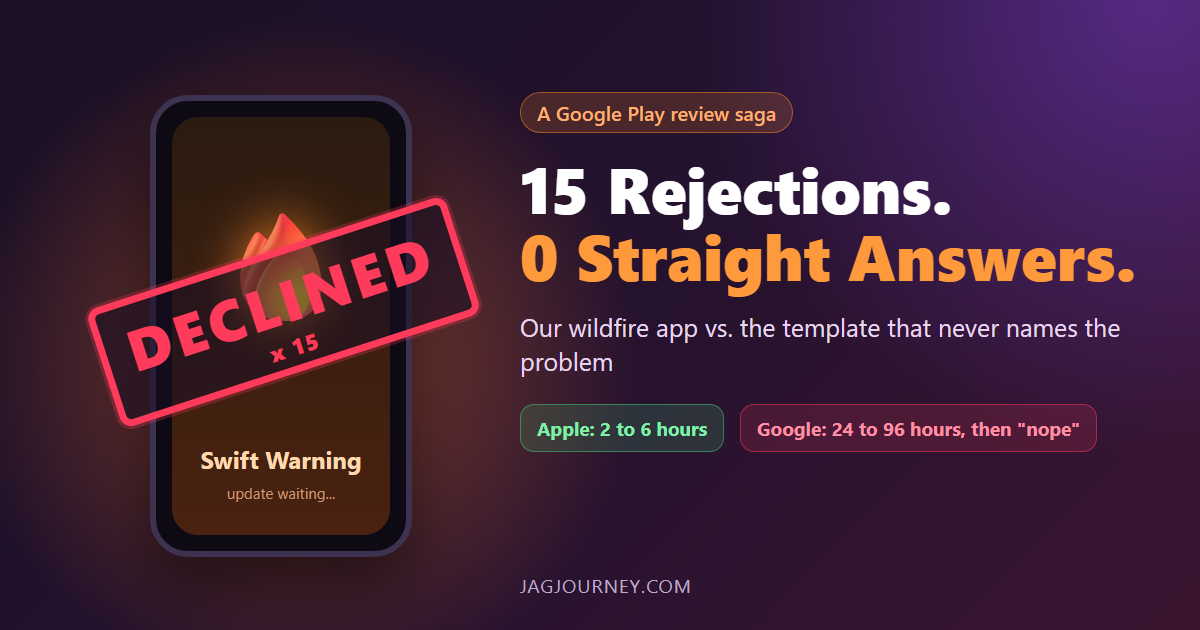
Fifteen Google Play Rejections and Not One Straight Answer
Apple approves our wildfire app Swift Warning in 2 to 6 hours. Google Play takes 24 to 96 hours, then declines it, 15 times since August, mostly without naming the problem. A funny, factual look at the loop and the safety updates it holds back.
Comments (0)
Sign in or sign up to comment.
No comments yet. Be the first to share your thoughts!