Two-Factor Authentication Methods Compared, From Text Codes to Security Keys
Two-factor authentication, often shortened to 2FA, adds a second check after your password. Even if someone steals or guesses your password, they still need that second piece to get in. It is one of the most effective protections you can turn on, and most major services offer it at no cost.
The catch is that "2FA" covers several very different methods. Some can be intercepted or talked around; others are extremely hard for ordinary attackers to beat. Here is how they compare.
How two-factor authentication works #
Security people describe sign-in factors as something you know (a password or PIN), something you have (a phone or security key) and something you are (a fingerprint or face). Two-factor authentication combines two different kinds, usually your password plus something you have. Multi-factor authentication, or MFA, is the broader term for the same idea.
The methods, from weakest to strongest #
Text message or phone call codes #
The service sends a short code to your phone number. It is easy and works on any phone, which is why it is so common. The weakness is that the code is tied to your phone number, not your device. In a SIM swap, a criminal persuades a mobile carrier to move your number to their SIM card and then receives your codes. Codes can also be phished: a fake login page asks for the code and passes it to the real site in real time.
Use it when it is the only option offered. It is still far better than a password alone.
Email codes #
Similar to text codes, but sent to your inbox. This is only as strong as your email account's own security, so protect that account well.
Authenticator app codes #
An app on your phone generates a new six-digit code every 30 seconds or so, based on a secret shared with the website when you set it up. No phone number is involved, so a SIM swap does not help an attacker. Codes can still be phished by a convincing fake page, but this is a solid step up.
Use it for most accounts that offer it.
Push notifications #
Some services send an "Is this you trying to sign in?" prompt to an app on your phone. It is convenient, but attackers have learned to send prompt after prompt, hoping a tired person taps Approve. This is called MFA fatigue or push bombing. Better versions show a number on the login screen that you must enter on your phone, which defeats most of this trick.
Use it when the prompt includes number matching or sign-in details, and never approve a prompt you did not start.
Passkeys and hardware security keys #
These use public key cryptography tied to the real website's address, so a fake page has nothing to collect. A hardware security key is a small USB or NFC device; a passkey can live on your phone, computer or password manager. Both are considered phishing-resistant, the strongest category for everyday users. Our guide to passkeys explains how they work.
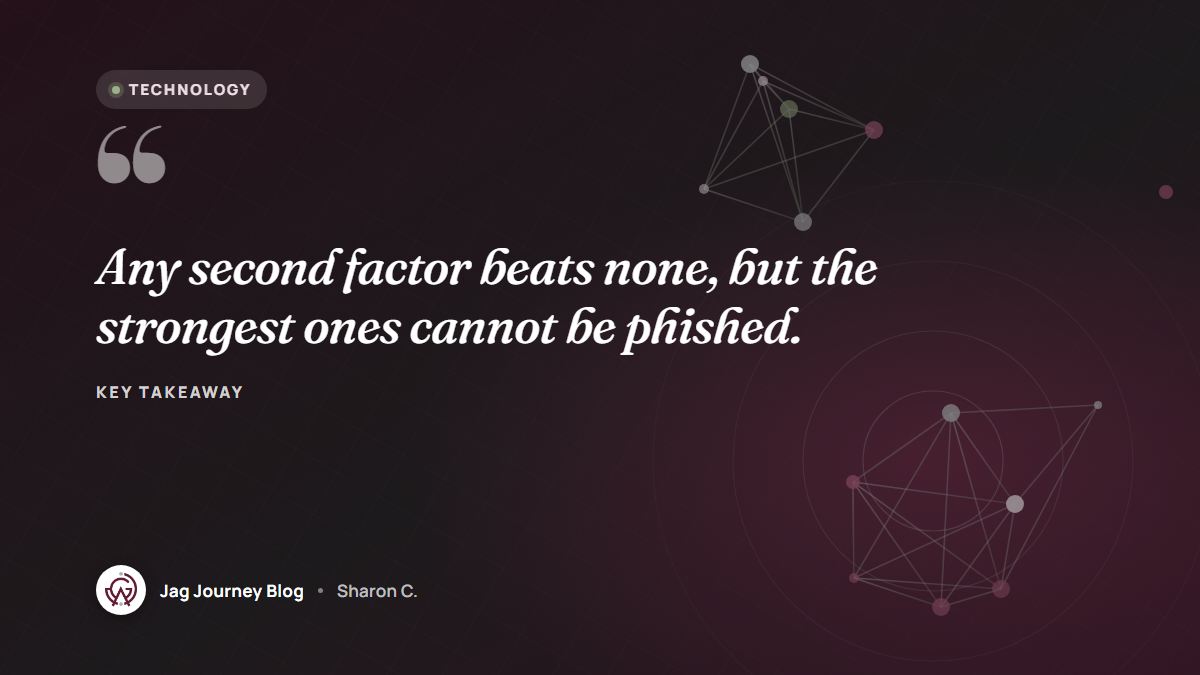
Use them for your most important accounts: email, banking, your domain registrar and anything with administrator access.
Which accounts to protect first #
You do not need to do everything today. Work in this order:
- Your primary email account. It can reset nearly every other password you have.
- Financial accounts such as banking, payment processing and payroll.
- Your password manager, if it has an online account.
- Business administration accounts: website hosting, domain registrar, social media pages and any admin dashboard.
- Everything else that offers 2FA, as you log in over the following weeks.
For small teams, a shared checklist helps. Our cybersecurity checklist for small businesses shows where 2FA fits in a broader plan.
Backup codes and recovery #
When you turn on 2FA, most services give you a set of one-time backup codes. These let you in if you lose your phone or security key. Treat them like a spare house key:
- Save them in your password manager, or print them and store the paper somewhere safe.
- Do not keep them in a plain note on the same phone that receives your codes.
- If you use hardware keys, register at least two and keep the spare somewhere separate.
- When you replace your phone, move your authenticator accounts before wiping the old device. Many authenticator apps offer a transfer or export option.
Habits that keep 2FA working #
- Never read a code to someone who calls you. Real companies do not ask for your sign-in codes over the phone. A caller asking for one is running a scam.
- Deny prompts you did not start, then change your password, because a surprise prompt usually means someone has it.
- Add a PIN or account lock with your mobile carrier, if it offers one, to make SIM swaps harder.
Frequently asked questions #
Is text message 2FA worth using at all? #
Yes. It blocks most automated attacks that rely on stolen passwords. Upgrade to an authenticator app, passkey or security key when the account allows it, especially for email and financial accounts.
What is the difference between 2FA and MFA? #
Two-factor authentication uses exactly two factors, while multi-factor authentication means two or more. In everyday use the terms are often interchangeable.
What if I lose the phone with my authenticator app? #
Use your saved backup codes to sign in, then set up the authenticator on your new phone and generate fresh backup codes. This is why storing backup codes somewhere other than the phone matters.
Related Posts
How to Accept Online Payments: Options for Small Businesses Explained
From payment links and invoices to website checkout and subscriptions, there are several ways to get paid online. Learn how each works, what to compare, and how payments connect to your books.
Why Scammers Ask for Gift Cards, Wire Transfers or Crypto
The payment method is often the biggest clue. Learn why scammers insist on gift cards, wires, payment apps, crypto or cash couriers, and what to do quickly if you already sent money.
Invoice Fraud and Fake Payment Requests: How to Protect Your Business
A polite email says a vendor changed banks, or the boss needs a payment sent today. Here is how invoice fraud works and the simple controls that stop it before money leaves.
How to Keep API Keys and Passwords Out of Your Code
Hard-coded API keys and passwords are one of the most common ways projects get breached. Learn how to keep secrets out of code, out of Git history and out of screenshots, and how to respond to a leak.
The 3-2-1 Backup Rule Explained With a Small Office Plan
The 3-2-1 rule is the simplest reliable backup strategy: three copies, two kinds of storage, one offsite. Here is what it means and a practical plan a small office or household can set up this week.
Comments (0)
Sign in or sign up to comment.
No comments yet. Be the first to share your thoughts!