Passkeys Explained: How Passwordless Sign-In Works
If a website has offered to "create a passkey" for you, you have met one of the biggest changes in how people sign in online. Passkeys replace the password with something you already have, your phone or computer, unlocked by your fingerprint, face or device PIN. They are easier to use and much harder to steal. Here is what happens behind the scenes and how to start using them without getting locked out.
What a passkey is #
A passkey is a pair of cryptographic keys created for one specific website or app. One key, the public key, is stored by the website. The other, the private key, stays with you, protected inside your device or your password manager.
When you sign in, the website sends a one-time challenge. Your device asks you to confirm it is really you, usually with a fingerprint, face scan or device PIN, and then uses the private key to sign the challenge. The website checks the signature with the public key it already has. If it matches, you are in.
Notice what never happens: no secret travels to the website, and nothing you type could be reused by someone else. Your fingerprint or face scan never leaves your device either. It only unlocks the key locally.
Passkeys are built on open standards from the FIDO Alliance and the World Wide Web Consortium, which is why they work across the major operating systems and browsers.
Why passkeys stop phishing #
Phishing works by tricking you into typing your password into a fake page that looks real. A passkey makes that trick useless for two reasons.
First, there is nothing to type. You cannot hand over a passkey the way you can hand over a password.
Second, each passkey is tied to the real website's address. If a scammer sends you to a lookalike domain, your device simply has no passkey for that address, so there is nothing to offer. The check happens automatically, which means it protects you even on a tired Friday afternoon when a fake login page might fool you.
Passkeys also take the sting out of data breaches. If a website's database is stolen, attackers get only public keys, which are useless for signing in.
Synced passkeys and device-bound passkeys #
You will see two kinds of passkeys in practice.
- Synced passkeys are backed up and shared across your devices by your platform account or password manager. Create one on your phone and it is available on your laptop signed in to the same account. This is the most common kind for everyday accounts and the easiest to live with.
- Device-bound passkeys live on one piece of hardware, such as a physical security key, and never leave it. They are favored for high-security accounts because the key cannot be copied, but losing the device means losing that passkey.
You can also sign in on a device that does not have your passkey, such as a borrowed computer, by scanning a QR code with your phone. Your phone does the cryptographic work and the computer receives the signed-in session.
How to set up your first passkey #
- Start with an account that supports passkeys. Look in the account's security or sign-in settings for an option labeled passkey or passwordless sign-in.
- Check where it will be saved. Your device will ask where to store the passkey: your phone or computer's built-in keychain, or a password manager that supports passkeys. Pick the place you use across your devices.
- Confirm with your device unlock. Use your fingerprint, face or PIN when prompted.
- Test it. Sign out and sign back in with the passkey before you change anything else.
- Keep a recovery path. Make sure the account still has a current recovery email, phone number or backup codes. Do not remove your only way back in.
Start with one or two accounts, such as your email and a shopping site, and add more as you get comfortable.
What to watch for #
Passkeys are a big improvement, but a few practical points are worth knowing.
- Recovery matters more than ever. If your passkeys sync through a platform account, that account becomes very important. Protect it with strong two-factor authentication and keep its recovery details current.
- Not every site supports passkeys yet, so you will still have passwords for a while. A password manager keeps those unique and organized.
- Shared accounts are awkward. If a team shares one login, passkeys can be clumsy. That is usually a sign the team should have individual accounts anyway.
- Switching phone platforms can take extra steps. Before you move from one ecosystem to another, check how your passkeys will come with you, or keep them in a password manager that works on both.
Frequently asked questions #
Is a passkey the same as using my fingerprint to log in? #
Not exactly. Your fingerprint or face only unlocks the passkey on your device. The actual sign-in is done with a cryptographic key, and your biometric data never goes to the website.
What happens if I lose my phone? #
If your passkeys are synced, they remain available on your other devices and return when you sign in to a new phone with the same platform or password manager account. A device-bound passkey on a lost device is gone, so you would use the account's recovery options instead.
Should I delete my password after creating a passkey? #
Some sites let you remove the password, which closes a door attackers could use. Only do it once your passkey works on the devices you need and you have a reliable recovery method in place.
Related Posts

What AI Agents Are and How Much Access to Give Them
AI agents do more than answer questions. They can browse websites, fill in forms, send messages and change files. Here is how they work and how to decide what to let them touch.
How to Choose a Password Manager: Cloud Sync or Local Vault
A password manager is the single best security upgrade most people can make. Here is how cloud and local vaults differ and what to check before you trust one with everything.
How to Make Sure Emergency Alerts Reach Your Phone
Wireless emergency alerts can save precious minutes, but only if your phone is set up to receive them. Here is how to check your settings, sign up for local alerts and build reliable backups.
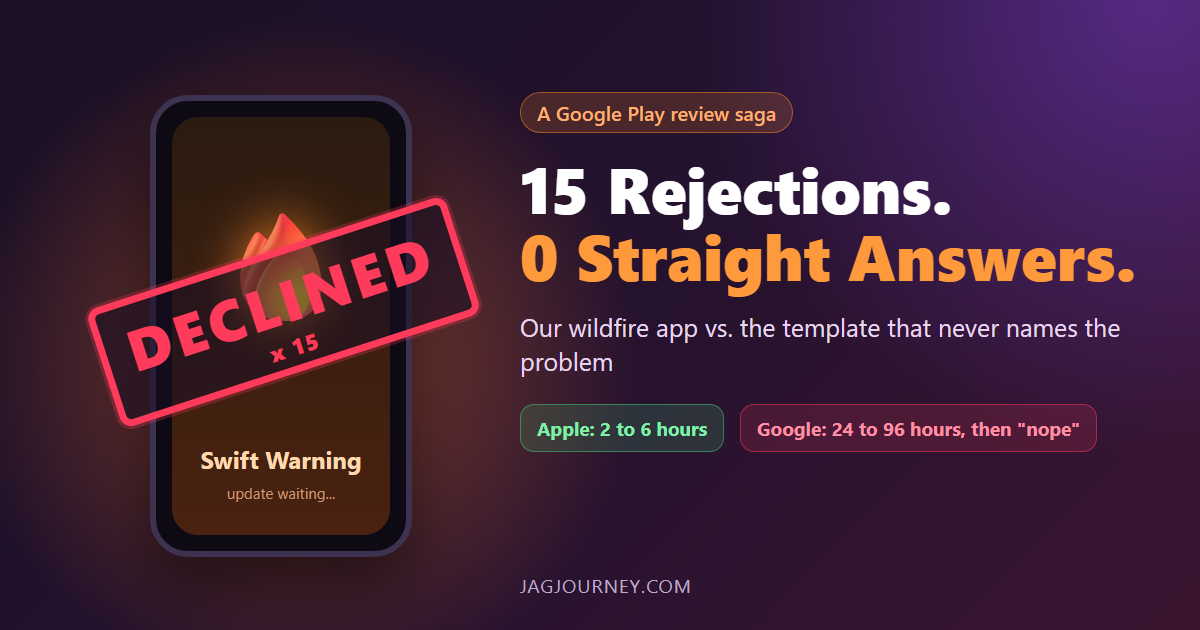
Fifteen Google Play Rejections and Not One Straight Answer
Apple approves our wildfire app Swift Warning in 2 to 6 hours. Google Play takes 24 to 96 hours, then declines it, 15 times since August, mostly without naming the problem. A funny, factual look at the loop and the safety updates it holds back.
The 3-2-1 Backup Rule Explained With a Small Office Plan
The 3-2-1 rule is the simplest reliable backup strategy: three copies, two kinds of storage, one offsite. Here is what it means and a practical plan a small office or household can set up this week.
Comments (0)
Sign in or sign up to comment.
No comments yet. Be the first to share your thoughts!