App Permissions Explained: What to Allow and What to Deny
The first time you open a new app, a stream of pop-ups often follows. Allow access to your location? Your photos? Your contacts? Your microphone? It is tempting to tap Allow on everything just to get started.
Permissions exist so you can decide. Most apps work fine with less access than they ask for, and modern phones give you narrower choices than a simple yes or no. Here is how to think about each one.
The one question to ask #
For every permission request, ask: does this app need this to do the job I installed it for? A map app needs your location. A photo editor needs your photos. A flashlight app does not need your contacts. When the request does not match the job, deny it. You can always grant it later if a feature truly needs it.
Permission by permission #
Location #
Location can reveal where you live, work, worship and travel. Both iPhone and Android offer helpful options:
- While using the app instead of always, for most apps.
- Allow once, for a single task like finding a nearby store.
- Approximate location instead of precise, when an app only needs your general area, such as a local weather forecast.
Reserve "always" access for apps that genuinely need to know where you are in the background, such as a safety alert app that warns you about your current location. Even then, check whether the app offers an alternative, such as watching places you choose.
Camera and microphone #
These are obvious for video calls and photo apps. For anything else, ask why. Both iPhone and Android show an indicator in the status bar when the camera or microphone is in use, so you can notice unexpected activity.
Photos #
Instead of granting access to your entire photo library, both platforms let you share only selected photos with an app. Use that option for apps where you post or edit occasional pictures.
Contacts #
Granting contact access may upload your whole address book, including other people's names, numbers and emails, to the app's servers. Those people did not agree to that. Allow it only when the feature is worth it to you, such as finding friends in a messaging app you will actually use.
Bluetooth and nearby devices #
Needed for headphones, watches and accessories. Because Bluetooth can also help estimate location, apps that have nothing to do with accessories should not need it.
Notifications #
Not a privacy risk in the same way, but a big attention cost. Allow notifications for apps that tell you things you need, and say no to the rest. Our guide to taming notifications goes further.
Tracking across apps #
On iPhone, apps must ask before tracking you across other companies' apps and websites. Choosing "Ask App Not to Track" is a simple privacy win. You can also turn off the ability for apps to ask at all in privacy settings. On Android, you can reset or delete your advertising ID in privacy or Google settings.
Accessibility and device administrator access on Android #
These are among the most powerful permissions on Android. Accessibility services can read the screen and act on your behalf, which is essential for people who rely on assistive tools but dangerous in the wrong app. Scam apps often try to trick people into granting it. Only allow it for apps you trust and understand.
How to review what you already allowed #
You have probably granted permissions over the years that you no longer need. Set aside fifteen minutes:
- On iPhone, open Settings, then Privacy and Security. Tap each category, such as Location Services, Camera or Contacts, and adjust which apps have access.
- On Android, open Settings, then look for Security and privacy, Privacy, or Permission manager, depending on your phone. Review each permission type and the apps that have it.
While you are there, delete apps you no longer use. An app you do not have cannot misuse anything. Android can also automatically remove permissions from apps you have not opened in a while, so make sure that option is on.
Special care for children's devices #
Kids tend to tap Allow quickly. If you manage a child's phone or tablet, review permissions together and use the parental control features built into the device to require approval for new apps. Explaining the "does it need this?" question teaches a habit that will last. If you have older relatives, a quick review together on their phone is a kind gift too, especially alongside our guide to text message scams.
For other settings worth turning on, see our list of smartphone security settings.
Frequently asked questions #
Why does a simple app ask for so many permissions? #
Some apps request more than they need, often for advertising or analytics. If a permission does not match the app's purpose, deny it and see whether the app still works. If it refuses to work without unnecessary access, consider an alternative.
Can an app use my microphone without me knowing? #
Phones show an indicator when the microphone or camera is active, and you can review which apps have recently used them in privacy settings. Remove microphone access from any app that does not clearly need it.
Does denying a permission break the app? #
Usually only the related feature stops working. For example, a store app without location access may ask you to type your zip code instead. You can grant access later if you want the feature.
Related Posts
How to Write an AI Use Policy for a Small Team
Your team is probably already using AI tools. A short, clear policy helps them do it well: which tools are approved, what information stays out, when a human must review, and when to disclose.
How to Back Up the Photos and Files on Your Phone
Your phone holds years of photos, messages and notes. Learn the difference between photo syncing and phone backups, how to keep a second copy, and what to check before you switch or lose a phone.
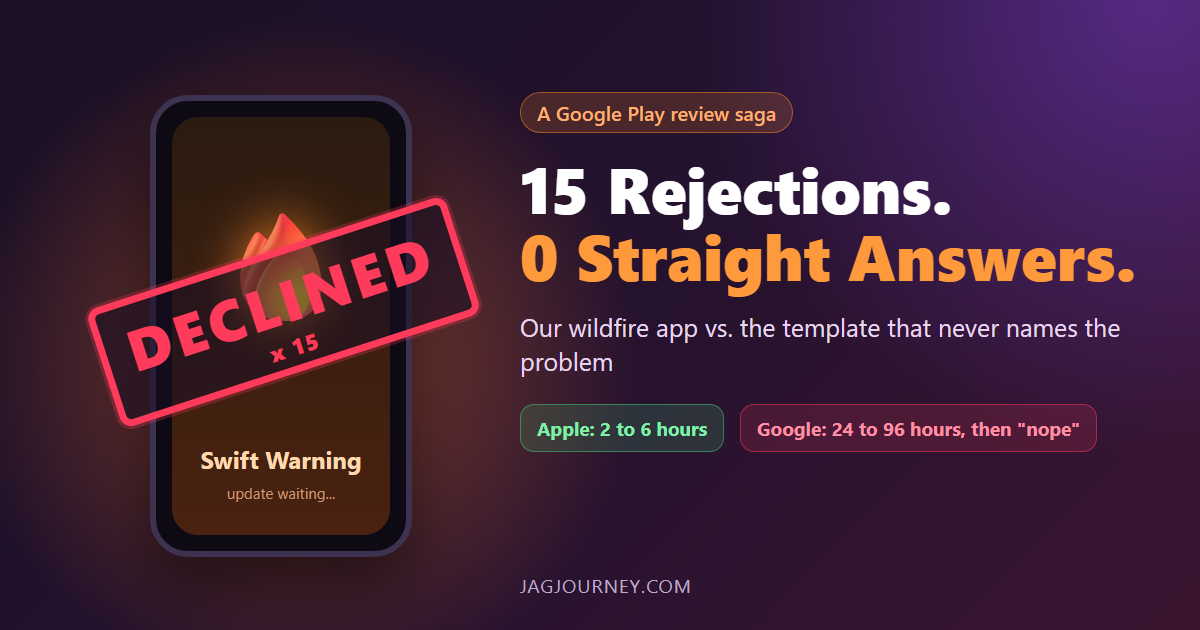
Fifteen Google Play Rejections and Not One Straight Answer
Apple approves our wildfire app Swift Warning in 2 to 6 hours. Google Play takes 24 to 96 hours, then declines it, 15 times since August, mostly without naming the problem. A funny, factual look at the loop and the safety updates it holds back.

AI Crawlers and robots.txt: Deciding What Bots Can Read
AI companies send crawlers to read websites for training, search and on-demand answers. Learn how these bots differ, what robots.txt can and cannot control, and how to decide what is right for your site.

How to Choose a Password Manager: Cloud Sync or Local Vault
A password manager is the single best security upgrade most people can make. Here is how cloud and local vaults differ and what to check before you trust one with everything.
Comments (0)
Sign in or sign up to comment.
No comments yet. Be the first to share your thoughts!