A Personal Online Privacy Checkup You Can Finish in an Afternoon
Over the years, most of us leave a trail: old accounts, public profiles, location histories, app permissions we granted without thinking and personal details collected by companies we have never heard of. None of that makes you careless. It is simply how modern life works.
The encouraging news is that a focused afternoon can tighten a great deal of it. Grab a cup of coffee, your phone and your computer, and work through these steps in order. Each one takes roughly fifteen to thirty minutes.
Step 1: Secure your main accounts #
Your primary email account and your phone's main account, such as your Apple Account or Google Account, are the keys to everything else.
- Turn on two-factor authentication if you have not already. Our guide to two-factor authentication methods explains the options.
- Review recovery email addresses and phone numbers and remove any you no longer use.
- Look at the list of devices signed in to each account and sign out of anything you do not recognize.
- Use the built-in security and privacy review tools many major accounts offer, which walk you through settings step by step.
Step 2: Review location settings #
Location data can reveal where you live, work, worship and travel.
- Review whether your phone or account keeps a location history or timeline, and turn it off or set it to delete automatically if you do not use it.
- Check which apps can access your location, and change most to "while using the app" or "never." Our guide to app permissions walks through each permission.
- When sharing photos publicly, consider removing location information. Many phones offer an option to exclude location when sharing.
Step 3: Tighten social media #
- Set profiles to private or friends-only where it fits how you use them.
- Limit who can see your friends list, birthday, phone number, email and past posts.
- Review tagged photos and turn on approval before tags appear on your profile.
- Remove old posts that share more than you would today, such as your children's school or your home address.
- Search your own name and see what others can find.

Step 4: Adjust ad and tracking settings #
- In your Google, Apple and social media accounts, review ad personalization settings and turn off what you are not comfortable with.
- On iPhone, choose "Ask App Not to Track" when apps request tracking, or turn off tracking requests entirely in privacy settings. On Android, you can reset or delete your advertising ID.
- In your browser, block third-party cookies and review which sites have permission to use your location, camera and notifications.
Step 5: Reduce what data brokers sell #
Data brokers are companies that collect and sell personal information, such as names, addresses, phone numbers, relatives and estimated income, often gathered from public records and commercial sources.
- Search for your name on people-search websites. Many offer an opt-out process, usually found in small print near the bottom of the page.
- Opt out from the sites that list you, keeping a note of each request.
- Check whether your state offers tools or rights that make this easier. California, for example, has passed a law creating a single deletion request system for registered data brokers.
- Paid removal services can handle opt-outs for you. Research them carefully, since they need your personal details to do the work.
Step 6: Close old accounts #
Unused accounts are risks waiting to happen, especially if they share an old password.
- Search your email for "welcome" and "verify your account" messages to find forgotten accounts.
- Delete accounts you no longer use, after downloading anything you want to keep.
- If you learn an old account was part of a data breach, follow our steps for a data breach notice.
Step 7: Share less going forward #
- Use a separate email address, or an email alias feature if your provider offers one, for shopping and newsletters.
- Give your phone number only when it is truly needed.
- Leave optional fields blank on forms.
- Think twice before taking online quizzes that ask for details like your first pet or street you grew up on, which are common security questions.
Step 8: Bring your family along #
Privacy is a household habit. Share what you learned with your spouse, older parents and children, and help them through the same steps. For kids, our guide to setting up phones and tablets safely covers age-appropriate settings.
Put it on the calendar #
Settings drift, apps change and new accounts appear. Repeat this checkup once a year, perhaps at the start of the year or on a birthday. Each time it gets faster, and each time you keep a little more of your life in your own hands.
Related Posts
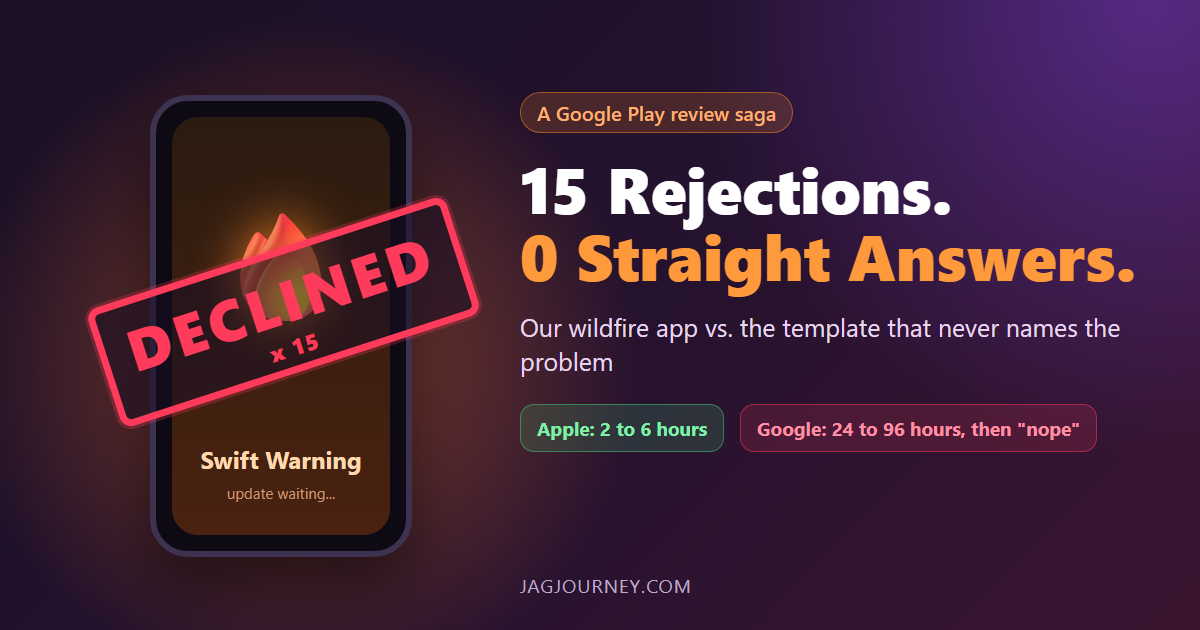
Fifteen Google Play Rejections and Not One Straight Answer
Apple approves our wildfire app Swift Warning in 2 to 6 hours. Google Play takes 24 to 96 hours, then declines it, 15 times since August, mostly without naming the problem. A funny, factual look at the loop and the safety updates it holds back.

AI Crawlers and robots.txt: Deciding What Bots Can Read
AI companies send crawlers to read websites for training, search and on-demand answers. Learn how these bots differ, what robots.txt can and cannot control, and how to decide what is right for your site.

App Permissions Explained: What to Allow and What to Deny
Every app asks for something: your location, your photos, your contacts. Learn what each permission really allows, how to choose the narrowest option, and how to review what you already granted.

You Got a Data Breach Notice. Here Is What to Do Next
A breach notice can be unsettling, but most of the useful steps are simple. Here is how to read the notice, protect the accounts at risk, freeze your credit and avoid follow-up scams.

How to Back Up the Photos and Files on Your Phone
Your phone holds years of photos, messages and notes. Learn the difference between photo syncing and phone backups, how to keep a second copy, and what to check before you switch or lose a phone.
Comments (0)
Sign in or sign up to comment.
No comments yet. Be the first to share your thoughts!