Setting Up Phones and Tablets Safely for Kids and Teens

Handing a child their first tablet or phone often comes with a mix of excitement and worry. Devices open doors to learning, creativity and connection with family. They also open doors to content, contacts and habits that children are not ready to handle alone.
Built-in parental controls on iPhone, iPad and Android are free and surprisingly capable. They work best alongside an ongoing, warm conversation. Here is how to set them up and adjust them as your children grow.
Start with a family conversation #
Before changing any settings, talk together about what the device is for, when and where it can be used, and what to do if something online feels wrong or scary. Some families write a simple agreement covering:
- Where devices are charged overnight, often outside bedrooms.
- Times when devices are put away, such as meals, homework and bedtime.
- Which apps are allowed and how new ones are requested.
- The promise that kids can always come to you about anything they see, without automatically losing the device.
That last point matters most. Children who fear punishment are less likely to tell you when something goes wrong.
Setting up Apple devices #
On iPhone and iPad, Apple's family features include:
- Family Sharing, which lets you create a child account managed by a parent.
- Screen Time, with downtime schedules, app limits and communication limits that control who your child can contact.
- Content and Privacy Restrictions, to limit explicit content, web content, app store ratings and changes to privacy settings.
- Ask to Buy, which sends you a request before your child can download or purchase apps.
Set a separate Screen Time passcode that your child does not know.
Setting up Android devices #
On Android, Google Family Link lets parents supervise a child's Google account and device:
- Approve or block apps from Google Play.
- Set daily screen time limits and bedtime.
- Manage content filters for Google Play, YouTube settings and web browsing through Chrome.
- See the device's location, if you choose.
Some Android manufacturers also include their own family or kids modes, so explore what your device offers.

Adjust by age #
Younger children #
Keep devices in shared family spaces, limit apps to ones you have chosen, turn off in-app purchases and use child-focused browsing or video apps with filtering.
Tweens #
Require approval for new apps, limit contacts to people you know, review privacy settings together and introduce online safety topics such as scams, kindness and what not to share.
Teens #
Gradually increase independence as trust grows. Shift from strict controls to agreed boundaries, and help teens set their own privacy settings on social apps. Many social media platforms require users to be at least 13, and some features have additional age limits.
Privacy settings to review together #
- Location sharing: share with family only, if at all, and turn off location tagging on posts.
- Account privacy: set social and gaming accounts to private where possible.
- Contact settings: limit messages and friend requests from strangers in apps and games.
- App permissions: review which apps can use the camera, microphone, photos and contacts. Our guide to app permissions explains each one.
Conversations controls cannot replace #
Talk regularly, and calmly, about:
- Strangers and pressure. If anyone online asks for photos, personal details or money, or makes threats, your child should stop responding and tell a trusted adult right away. They will not be in trouble for telling you.
- Scams. Kids get scam messages too, including fake giveaways and gaming currency offers. Our guide to text message scams is a useful reference for the whole family.
- What they share. Photos and posts can be copied and spread beyond the people they were meant for.
- How they feel. Notice changes in mood, sleep or withdrawal. If your child seems to be struggling, talk with your pediatrician or a counselor. In the United States, you can call or text 988 to reach the Suicide and Crisis Lifeline.
Review every few months #
Children grow, apps change and settings get reset after updates. Put a reminder on your calendar to review controls together a few times a year. For your own accounts, our personal privacy checkup is a good companion activity.
Frequently asked questions #
What is the right age for a first phone? #
There is no single right age. Consider your child's maturity, why they need a phone, and whether a limited device or a phone with strong controls would meet that need first.
Should I read my teenager's messages? #
Families handle this differently. Many parents find that clear expectations, transparency about what they can see and growing trust work better than secret monitoring. If you have a specific safety concern, address it directly.
Can kids get around parental controls? #
Sometimes, yes. Controls reduce risk but are not foolproof, which is why ongoing conversation, shared expectations and trust remain the strongest protection.
Related Posts

A Tech-Ready Family Emergency Plan: Contacts, Power and Copies
When disaster strikes, phones become flashlights, maps, radios and lifelines. Here is how to prepare your family's devices, contacts, documents and power so technology helps instead of failing.

How to Make Sure Emergency Alerts Reach Your Phone
Wireless emergency alerts can save precious minutes, but only if your phone is set up to receive them. Here is how to check your settings, sign up for local alerts and build reliable backups.

App Permissions Explained: What to Allow and What to Deny
Every app asks for something: your location, your photos, your contacts. Learn what each permission really allows, how to choose the narrowest option, and how to review what you already granted.
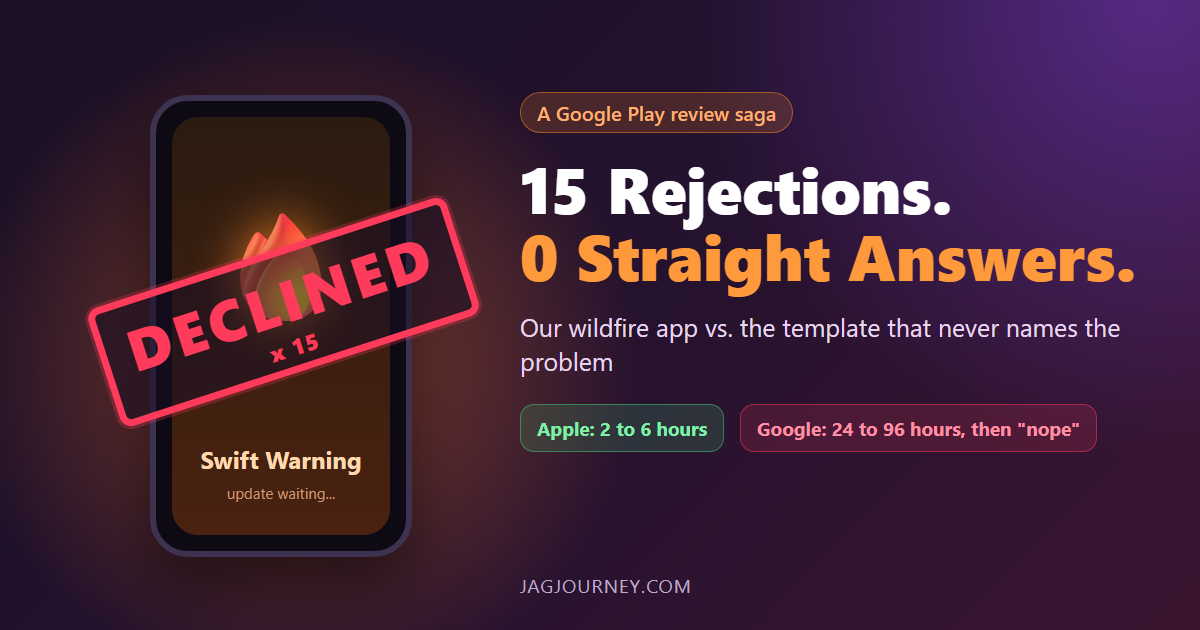
Fifteen Google Play Rejections and Not One Straight Answer
Apple approves our wildfire app Swift Warning in 2 to 6 hours. Google Play takes 24 to 96 hours, then declines it, 15 times since August, mostly without naming the problem. A funny, factual look at the loop and the safety updates it holds back.

How to Back Up the Photos and Files on Your Phone
Your phone holds years of photos, messages and notes. Learn the difference between photo syncing and phone backups, how to keep a second copy, and what to check before you switch or lose a phone.
Comments (0)
Sign in or sign up to comment.
No comments yet. Be the first to share your thoughts!