When Automations Break: How to Monitor and Maintain Workflows
The best thing about automation is that you stop thinking about the task. That is also the danger. When an automation breaks, it usually does not announce itself. Form submissions simply stop reaching the spreadsheet. Reminder emails stop going out. Weeks later, a customer asks why nobody responded, and you discover the problem started a month ago.
Automations need a little care, like any other system. The good news is that a few light habits catch most problems early.
How automations usually break #
- Expired or revoked connections. Someone changes a password, turns on two-factor authentication or removes an app's access, and the connection quietly stops working.
- Renamed fields or columns. A teammate tidies up the form or renames a spreadsheet column, and the field mapping no longer matches.
- App updates. A connected app changes how it shares data or retires an older feature.
- Plan limits. The automation platform or a connected app hits a monthly usage limit and pauses.
- Unexpected data. A blank field, a very long entry or an unusual character causes a step to fail.
- Duplicates. A trigger fires twice, creating duplicate records or sending the same email twice.
- The builder leaves. The workflow was connected through one person's account, which is closed when they move on.
Give every automation an owner #
Each workflow needs a named owner who understands what it does and checks on it, plus a backup person. Ownership should be a role, such as "office manager," as well as a name, so it survives staff changes.
Keep an automation inventory #
Create a simple shared list of every automation your organization relies on, including ones built into individual apps. For each, record:
- Its name and a one-sentence purpose.
- What triggers it and which apps it connects.
- Which account each connection uses.
- The owner and backup.
- What should happen manually if it stops working.
- When it was last reviewed.
This list is invaluable when something breaks, when someone leaves and when you are deciding what to keep.
Turn on failure alerts #
Most automation tools can notify you when a run fails. Turn this on for every workflow, and send alerts to a shared inbox or team channel, not just one person's email. If an alert goes to someone on vacation or someone who left, it is the same as having no alert.
Add simple health checks #
Failure alerts catch errors, but not silence. If a form stops sending submissions entirely, nothing "fails." A weekly summary helps catch this:
- A weekly email showing how many form entries, bookings or orders came through.
- A glance at the automation tool's run history to confirm activity looks normal.
If you usually get a dozen inquiries a week and the summary says zero, investigate.
Treat changes as a checkpoint #
Before you rename spreadsheet columns, edit form fields, change passwords or reorganize folders, check the inventory for automations that depend on them. After the change, run a test. Building this pause into your routine prevents most breakages.
Review every quarter #
Set a recurring thirty-minute review. For each automation, ask:
- Do we still need it?
- Is it still doing the right thing, with current wording, prices and policies?
- Are its connections using organization accounts with appropriate permissions?
- Has it had errors we ignored?
- Is it costing more than it is worth?
Turn off what you no longer need. Every unused automation is one more thing that can misbehave.
When someone leaves #
Connections made through a departing person's account often break when that account is closed. Reconnect them using an organization-owned account before the account is disabled, as part of your offboarding checklist. Our guide to team accounts and offboarding includes this step.
What to do when an alert arrives #
- Check the run history to see which step failed and the error message it gave.
- Look for a recent change, such as a renamed field, a new password or an app update, since most failures trace back to one.
- Fix the cause, then rerun the failed items if the tool allows it, or handle them by hand.
- Check for side effects, like duplicate records or emails that went out twice.
- Note what happened in the inventory so the next person knows the history.
Keep a manual fallback #
For important workflows, write down how to do the task by hand. If an automation fails on a busy day, someone can keep things moving while the owner fixes it.
Build maintenance in from the start #
The easiest automations to maintain are the ones designed with care: clear names, organization accounts, narrow permissions and error notifications from day one. If you are just getting started, our guides to no-code automation basics and finding the tasks worth automating cover those foundations. A few minutes of care each month keeps automation what it should be: quiet, reliable help that gives your team time back.
Related Posts

Should Your Business Use an AI Chatbot for Customer Questions?
An AI chatbot can answer routine questions at midnight, or confidently give a customer the wrong refund policy. Here is how to decide if one fits your business and how to set it up responsibly.

Using AI-Generated Images in Your Business: Rights, Disclosure and Quality
AI image tools can produce a blog header or social graphic in seconds. Before you use one commercially, understand the ownership questions, the rules of the tool, and the checks that keep you honest.
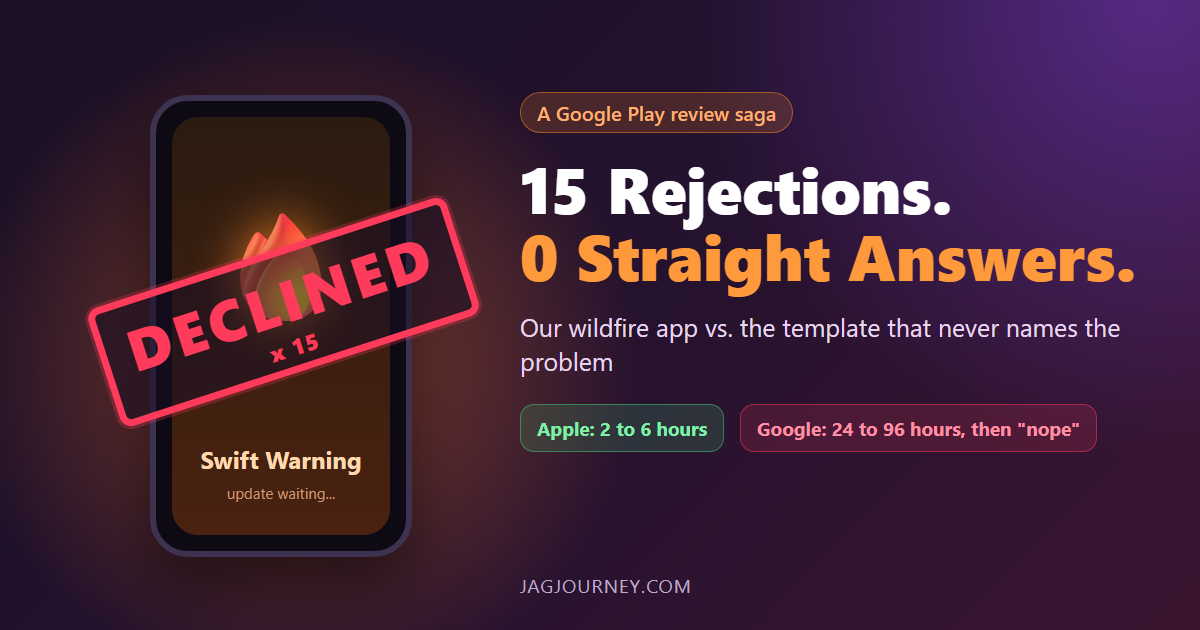
Fifteen Google Play Rejections and Not One Straight Answer
Apple approves our wildfire app Swift Warning in 2 to 6 hours. Google Play takes 24 to 96 hours, then declines it, 15 times since August, mostly without naming the problem. A funny, factual look at the loop and the safety updates it holds back.

How to Accept Online Payments: Options for Small Businesses Explained
From payment links and invoices to website checkout and subscriptions, there are several ways to get paid online. Learn how each works, what to compare, and how payments connect to your books.
How to Write an AI Use Policy for a Small Team
Your team is probably already using AI tools. A short, clear policy helps them do it well: which tools are approved, what information stays out, when a human must review, and when to disclose.
Comments (0)
Sign in or sign up to comment.
No comments yet. Be the first to share your thoughts!